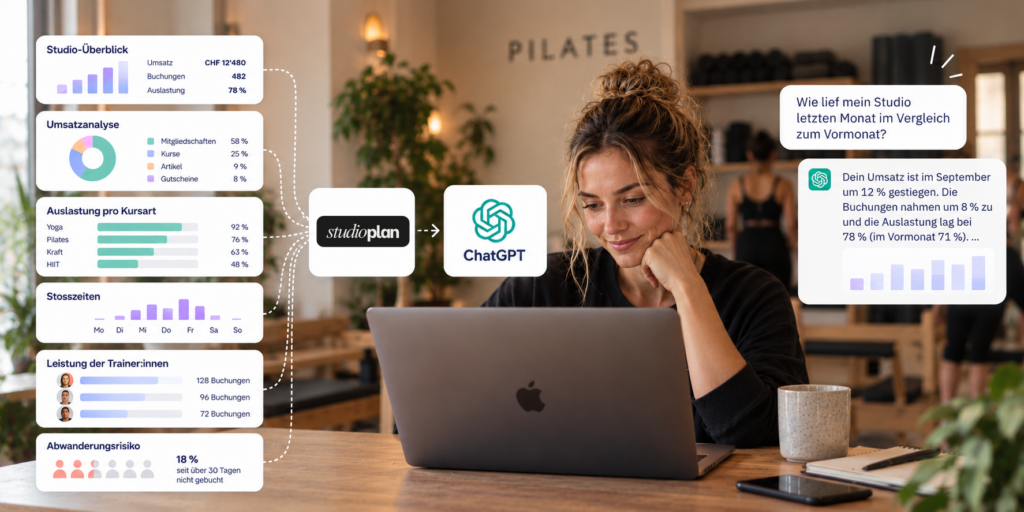
If you already use ChatGPT every day, you can now ask it about your studio too. StudioPlan connects to ChatGPT the same way it connects to Claude: through a secure, read-only connector that gives the assistant your aggregated studio figures. No exports, no spreadsheets – you ask, it answers.
What ChatGPT can analyse
Once connected, ChatGPT can use the same six analyses as Claude:
- Studio overview: revenue, bookings, cancellation and no-show rates, number of classes, overall fill rate and waitlist activity.
- Revenue breakdown: by product (classes, memberships, articles, vouchers), by payment method and over time.
- Class fill rates: booked spots, capacity, average attendance and fill rate per class type.
- Peak hours: bookings by weekday and time, in your studio’s time zone.
- Instructor performance: classes, bookings and revenue per instructor.
- Client retention risk: how many active clients have not booked for a while – summarised anonymously.
Questions to start with
- „How did my studio do last month compared with the month before?“
- „Which class types are under-filled this quarter?“
- „When are my peak hours, and where is there free capacity?“
- „What share of my revenue comes from memberships?“
- „How many active clients have not booked for more than 30 days?“
- „Summarise the key insights from the last 90 days in five bullet points.“
Tip: give ChatGPT a period („in September“, „last 90 days“). Without one, the last 30 days are used.
Privacy: what ChatGPT sees and what it doesn’t
- Read-only: ChatGPT cannot book, cancel or change anything in your studio.
- Aggregated figures only: client names, email addresses and phone numbers are never shared. Instructor names are included so you can compare your team.
- Sign in with StudioPlan: you log in with your own account and choose which studio to connect. No passwords are shared.
- Disconnect any time: Studio → Integrations lists every connected app, including ChatGPT. If someone leaves your team, their connection ends automatically.
How to connect ChatGPT to StudioPlan
- In StudioPlan, open Studio → Integrations and copy the server URL from the ChatGPT card.
- In ChatGPT, open Settings → Apps → Advanced settings and turn on Developer mode.
- Under Settings → Apps, create an app named „Studioplan“, paste the URL as the MCP server URL and choose OAuth as authentication.
- Sign in to StudioPlan, choose your studio and allow access.
- Start a new chat, add Studioplan from the tools menu and ask your first question.
The step-by-step guide is in our Help Center. Prefer Claude? It works the same way – see Analyse your studio with Claude.
Included in every plan
The connection is included in every StudioPlan plan. See all features on the features page and in our pricing.